Speed cameras for Garmin
Safety camera database for Garmin with all stationary speed and red light monitoring systems worldwide.
Infos & Download
Safety camera database for Garmin with all stationary speed and red light monitoring systems worldwide.
Infos & Download
Are you a native speaker? Would you be willing to help us?
We are very appreciative of translations or pictures/screenshots to help optimize our installation guide. And for any other advice.
Please don't hesitate to write us an email: info@scdb.info. Thanks in advance.
We offer data of fixed speed cameras and mobile speed cameras.
Go to our productpage for Garmin.
Make your choice.
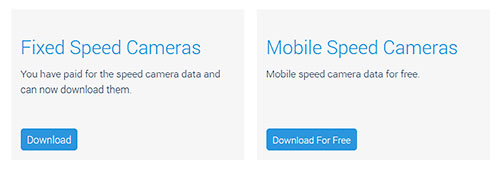
Download mobile speed camera data:
Press the button Download For Free.
The download starts automatically.
Save file garmin-mobil.zip to your hard disc.




The folder garmin includes fixed speed cameras.
Files formats: CSV (speedcams) and BMP (icons).
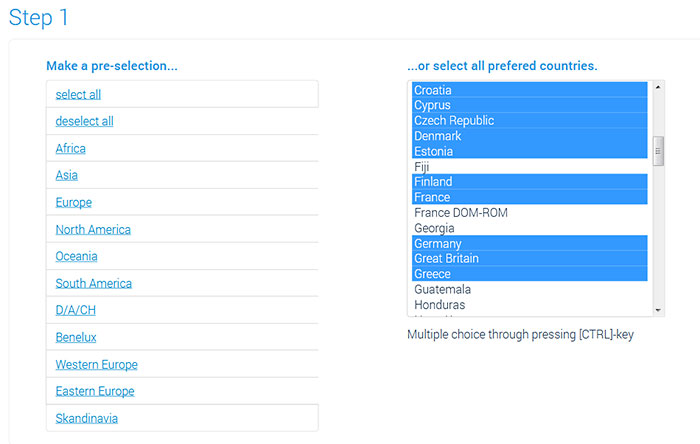
The number of files depends on your choice on download page.
We downloaded speed cameras for Europe, split in all categories. File names let you know about the file content.
Our speed values are unitless. They can refer to mph (Great Britain) and kph (Continental Europe).
Ex.: Both, the British speedcam with 30mph and the German speedcam with 30kph are included in the file SCDB_Speed_30.csv (if you select these countries).
See also capter 8: Advice for countries with various units (MPH and KMH).
| SCDB_Redlight | redlight cameras |
| SCDB_Redlight_50 | combined cameras for redlight and speed |
| SCDB_Section_40 | SPECS, section controls with speed limit 40 mph / kph |
| SCDB_Speed_30 | speed cameras with speed limit 30 mph / kph |
| SCDB_Speed_variable | speed cameras with variable speed limit |
| SCDB_Tunnel | cameras inside a tunnel or following a tunnel |


Move all files for fixed speedcams and all files for mobile speedcams into one folder before starting POI Loader.
(Ignore this step when you install only fixed speedcams.)
In our example: We create a new folder SCDB-Blitzer on the desktop.
We then move all files into this folder to install.


Switch on your Garmin device.
Connect the device with your computer.


Skip when you chose Garmin Device before.
If you chose Computer you can find the converted POI file poi.gpi on your desktop.
The file name depends on your choice in the step before.
Copy and paste the POI file into the Garmin device in folder poi. Alternatively, copy and paste to the SD card into the folder "[SD card]/Garmin/poi".
Note for Garmin zumo XT (Mac):
The Garmin zumo XT is based on Android. Mac Finder doesn't display the device. Download and use Android File Transfer to connect zumo XT to the Mac computer. And paste the file poi.gpi into the device.

Mostly, Cyclops sample POIs are preinstalled in the POI folder.
Cyclops POIs prevent the display of SCDB POIs.
Therefore you have to delete (Löschen) all Cyclops files (e.g. AustriaGermanyCyclopsSample.gpi, ...).


Disconnect the Garmin device from the computer.
Switch on the Garmin device.


Now your Garmin is ready for a safe trip.
Note: Make a real test drive. Alerts doesn't work on simulated route.
Repeat all steps of the guide above to update the speed camera data on your device.
In general, it is not necessary to delete old data before.
New data overwrite the old ones if you choose the same name for POI file (e.g. poi).
In case you have any problems with the installation, you should delete old POIs from the system beforehand.
Monthly updates are recommended.


In case you want to travel to countries with another speed unit, there are a few things you must consider.
Example:
You downloaded data for fixed speedcams in "Europe" with the option "Split into all categories (several files)".
These files are unitless in our data: So, the file SCDB_Tempo_30.csv contains speedcams with both speeds 30 km/h AND 30 mph.
Problem:
In Europe, the speed is measured in km/h (kilometers per hour), while in Great Britain it's mph (miles per hour).
In the POI Loader though, you have to choose only one unit.
Solution:
Please download the countries with the with different units separately from each other.
Install the files using the POI Loader separately from each and choose different names.
Example:
First, please download data for fixed speedcams in Europe (without Great Britain).
Only then go on to download the data for Great Britain.
Install the data for Europe first, using the POI Loader.
Name the POI file poi-europe and choose the units Meter und km/h.
POI Loader will create the file poi-europe.gpi.
Then, install the data for Great Britain using the POI Loader.
Name the POI file poi-uk and choose the units Miles and mph.
The POI Loader will create the file poi-uk.gpi.
In the device settings you can adjust the units for each country.
The speedcam alerts will now be correct and unit based.